How to Post Camera Roll Photos to
Ray-Ban Meta Story on Instagram
Took an incredible shot with your iPhone, Android, or mirrorless camera and want to share it on your Instagram Story with the interactive 3D Ray-Ban Meta glasses spin sticker? Convert your camera roll photos directly below in under 30 seconds.
Convert Your Camera Roll Photo Now
Select your image below to inject authentic Ray-Ban Meta Gen 2 EXIF 0232 camera signatures and normalize to 3024×4032 (3:4).
Important notice: Video conversion is currently in active beta testing and might not work on all devices or Android versions due to platform re-encoding.
Real photo tagged "AI info" on Instagram, Facebook or Threads? Drop it below to see which C2PA, IPTC, XMP or EXIF fields trigger the label, then save a clean copy. Pixels are not re-encoded and nothing is uploaded.
AI info label detector and remover
What we found
What no metadata tool can remove
Invisible pixel watermarks such as Google SynthID and Meta Video Seal, Meta's own image classifiers, and the "AI info" self-disclosure toggle you set when posting. Cleaning also does nothing to a post that is already live.
Next: upload this clean copy as a new post. The old post keeps its label, so delete and re-upload if you need it gone.
Use this to fix wrongly labeled real photos and to clean private metadata. Content that was actually AI-generated should still be disclosed, as Meta's policy requires.
Removes C2PA Content Credentials, IPTC DigitalSourceType and AI tool names. It cannot remove invisible watermarks like SynthID or change a post that is already live. Full guide & FAQ →
How to Prevent iOS Safari from Stripping EXIF Metadata
Over 60% of creators edit and post from iPhones. iOS Safari has a strict security privacy feature: when you download a web file to the "Files" app (Downloads folder) and then upload it to Instagram, iOS automatically strips all camera metadata.
Tapping "Download", saving the image to the iOS Files app, or screenshotting the preview. Instagram will not recognize the glasses metadata.
Tap "Save / Share to Photos" in the studio, then tap "Save Image" directly to your Apple Photos Camera Roll. All metadata remains 100% intact!
Step-by-Step Instagram Story Posting Guide
Follow these exact steps once you have converted and saved your photo to Photos:
Launch Instagram, swipe right to open the Story camera, and tap your photo library square at the bottom-left corner.
Select your newly saved photo from "Recents". You will notice the photo is neatly formatted in the 3:4 wearable ratio without black border clipping.
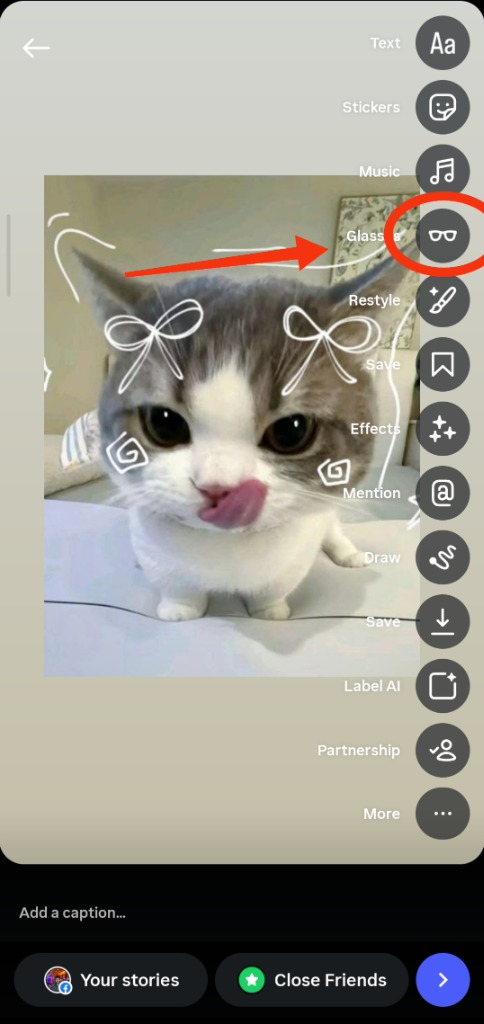
Look at the vertical toolbar on the right side of your screen. Tap the Glasses icon (located alongside text, stickers, and audio tools).
The 3D Ray-Ban Meta model attaches to your Story. Gently tilt and rotate your smartphone to see the glasses model spin in real-time with your phone gyroscope!
Frequently Asked Questions
Questions about converting phone camera roll pictures to wearable Meta Stories.
Can I use any photo already saved on my camera roll?
Yes! Whether the photo was taken with an iPhone, Samsung Galaxy, Google Pixel, professional mirrorless camera, or generated via AI (Midjourney, DALL-E), FreeImGen AI formats it to the exact 3024×4032 (3:4) dimensions and writes the binary EXIF tags required by Instagram Stories.
Why does Instagram strip the metadata when I save from Safari?
If you tap "Download" in iOS Safari and save the file to the "Files" app (iCloud Drive), iOS treats it as an unverified web download and strips extended EXIF markers when passing it to Instagram. To avoid this, always use our "Save / Share to Photos" button and tap "Save Image" to place it directly in your Apple Photos album.
Does this convert horizontal / landscape camera roll photos?
Yes. The studio automatically centers your horizontal landscape photo onto a crisp 3024×4032 (3:4 portrait) canvas, ensuring your subject is framed perfectly for Instagram Stories without distortion.
Are my private camera roll photos uploaded to any server?
No. FreeImGen AI processes 100% of your images locally in your browser sandbox using HTML5 Canvas and JavaScript byte-stream EXIF encoders. Zero bytes are uploaded to our servers or stored in any cloud database.
Can I upload videos from my camera roll too?
Yes. To convert camera roll videos into Meta Glasses format (1440×1920 9:16 portrait with QuickTime metadata atoms), use our dedicated Video Converter tool.